
 English
 Русский
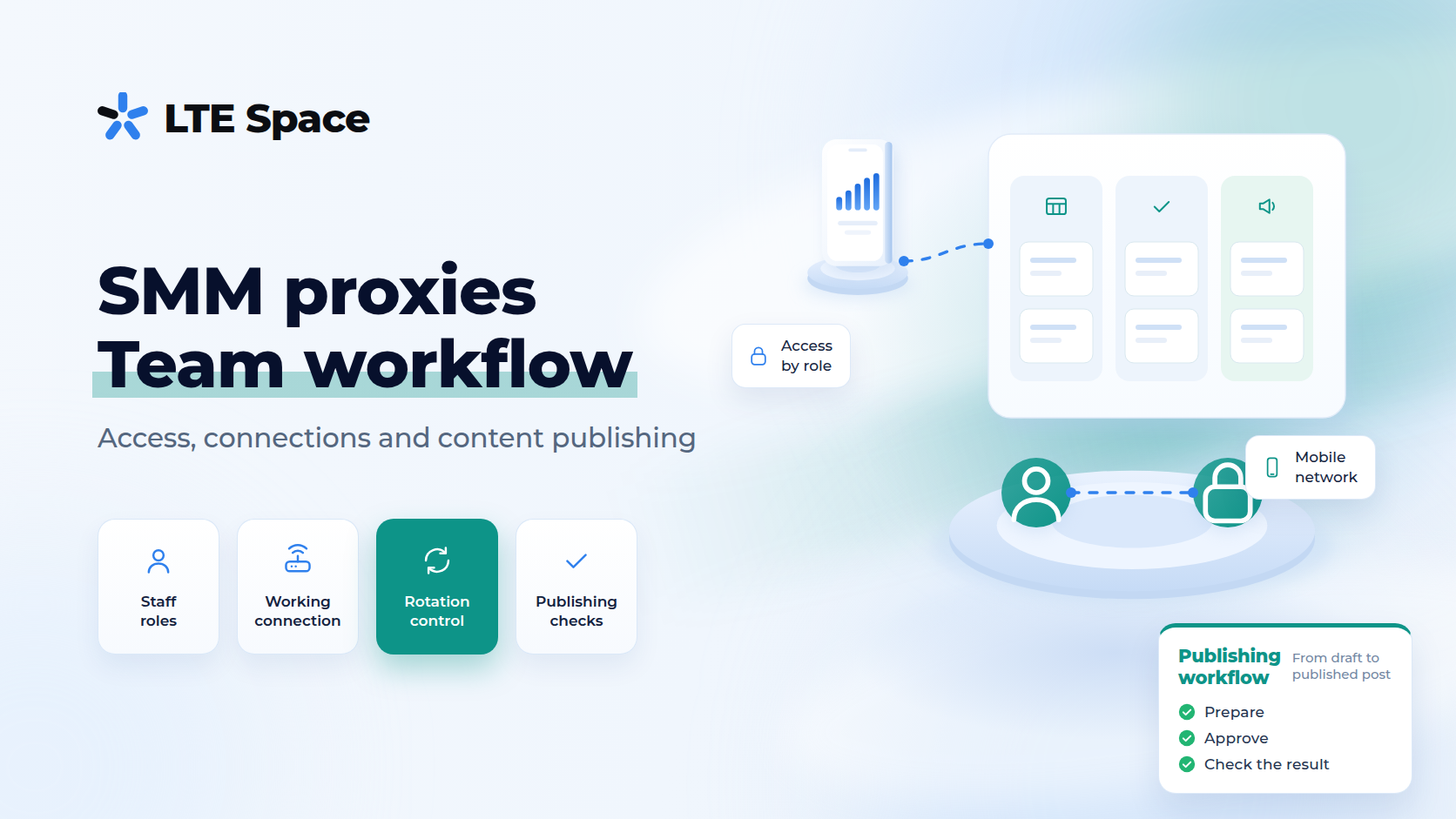
Mobile proxies for SMM route a compatible browser or application through a mobile carrier’s network. For a social media team, that can be useful when checking a public page from a selected region, maintaining a documented connection for a client project or testing whether a published link works over a mobile network.
Managing several brand pages does not automatically require a separate proxy for every page. Before buying connections, distinguish three parts of the workflow: staff permissions, browser sessions and network routing. Each solves a different problem.
When mobile proxies for SMM are useful
Start with a specific task rather than an account count:
- checking a public page or campaign link through a carrier connection in a selected country;
- using a separately configured connection for a client project;
- uploading content through a proxy while controlling scheduled IP changes;
- comparing page availability over the team’s regular connection and a mobile connection.
A mobile IP does not turn a desktop browser into a phone app. It also does not replace testing the mobile interface on a real device. Treat a regional check as an observation from one connection and session, not a perfect reproduction of every local user’s feed.
If the actual problem is that writers should draft posts while a manager approves them, solve permissions and approvals first. Extra proxy connections do not create that workflow.
Separate permissions, sessions and connections
Permissions determine what a team member may do. A browser session preserves login state. A proxy provides a route for the requests configured to use it.
Buffer provides a concrete example of permission separation: a user’s role and access to individual channels are configured separately. In its new role model, Collaborators can prepare drafts but cannot publish. That model is rolling out to Team plan organizations, so availability can differ between workspaces. See Buffer’s role documentation. The principle matters more than the choice of scheduling tool.
A practical agency workflow should include:
- individual staff access with the necessary permissions wherever the platform supports it;
- a named owner for recovery methods and two-factor authentication;
- clearly labelled browser profiles for separate clients to reduce session mix-ups;
- removal of a departing employee’s access, rather than merely changing a proxy password.
Browser profiles help organize sessions. They do not guarantee that a platform cannot associate accounts. Mobile proxies likewise provide no guarantee against account restrictions and do not override platform rules.
Choosing a connection for social media work
Match the connection to session length and workload. Replying to a comment, uploading a large video and checking a public link have different requirements.
Control over rotation matters during longer operations. LTESpace’s private mobile proxy guide describes IP changes through a rotation link or a selected interval; shared connections rotate on a timer. Confirm the behavior of the specific plan before ordering.
A private connection is a dedicated provider resource, not a promise of a permanent public IP. A useful question for support is: “We need to upload videos without scheduled rotation during the upload. Which mode fits, and what limitations remain?”
Do not choose on advertised peak speed alone. For publishing video, upload throughput, connection reliability and coworkers’ simultaneous traffic matter. Test a representative file during normal working hours. The mobile proxy speed guide explains the factors behind changing performance.
There is no universal “one account, one proxy” rule for every social media team. The number of connections should follow workload and the need for independent control. Multiple ports alone do not establish that each team member can rotate independently; ask the provider how those ports are backed.
Test the application that will actually do the work
Configuring a proxy in one browser does not establish that another application or a cloud scheduler uses the same route.
Desktop Firefox supports its own proxy settings, system settings and exceptions for selected addresses. See Mozilla’s connection settings documentation and our Firefox proxy setup guide.
Before using the connection for client work:
- Confirm the host, port and protocol supplied by the provider. The proxy endpoint and the public exit IP shown by an IP check may differ.
- Add authentication details in the working application. Keep credentials out of screenshots and shared instructions.
- Check the public IP in the same browser profile. This validates that test request, not every request made by the computer.
- Open the actual platform and test the editor, a representative upload and draft preview. A public post is unnecessary for this test.
- Repeat under normal concurrent load, including a colleague’s upload if that reflects everyday use.
- Record the assigned profile, rotation mode and person responsible for the connection. Store the password separately.
If a cloud scheduler sends a post from its own server, the employee’s browser proxy does not determine that server’s outbound connection. Check the scheduler’s documented connection options before assuming the proxy covers scheduled publishing.
Example: two specialists and an approver
Consider an agency managing two clients. One specialist prepares content, another handles replies, and a manager approves posts. This is a workflow example, not a recommended number of accounts per connection.
Each client has a clearly named workspace and appropriate staff access. Draft preparation is separated from final publishing. Where a mobile route is needed, the team records which working profile uses it and who controls rotation.
Before a video upload, the specialist checks the active profile and rotation mode. Colleagues avoid triggering an IP change on that connection during the operation. After the upload, the specialist checks the saved draft and preview. Once publication is approved and completed, the team checks the live post and its links.
If an upload is interrupted, first check whether the draft or post was saved. Repeatedly pressing Publish without checking can create duplicates. Record the failure time, application, rotation mode and whether coworkers saw the same issue. This gives support a concrete incident to investigate.
Common questions about mobile proxies for SMM
Does each team member need a proxy? Not necessarily. Identify who needs a distinct route or independent rotation. Individual staff permissions are a separate requirement from the number of network connections.
Should the IP change before every post? Do not make that a routine requirement without a technical reason. Plan connection changes between completed operations. The mobile proxy rotation guide explains the available approaches.
Will a mobile proxy remove an account restriction? There is no such guarantee. Investigate the platform’s stated reason and use its recovery or appeal process. Changing connections is not a replacement for resolving the underlying issue.
What should a trial cover? Test a normal work cycle: login, editing, uploading, saving and concurrent use. Check available rental periods and connection options in LTESpace pricing.
Takeaways
Mobile proxies for SMM are useful when a team needs a controlled route through a carrier network. Build permissions and publishing responsibilities first, then choose a connection that fits real workload and session length. A tested draft workflow and agreed rotation timing offer a clearer operating plan than promises of unlimited accounts without restrictions.